The Complete Guide to Managing Cloudflare D1 Without the Terminal
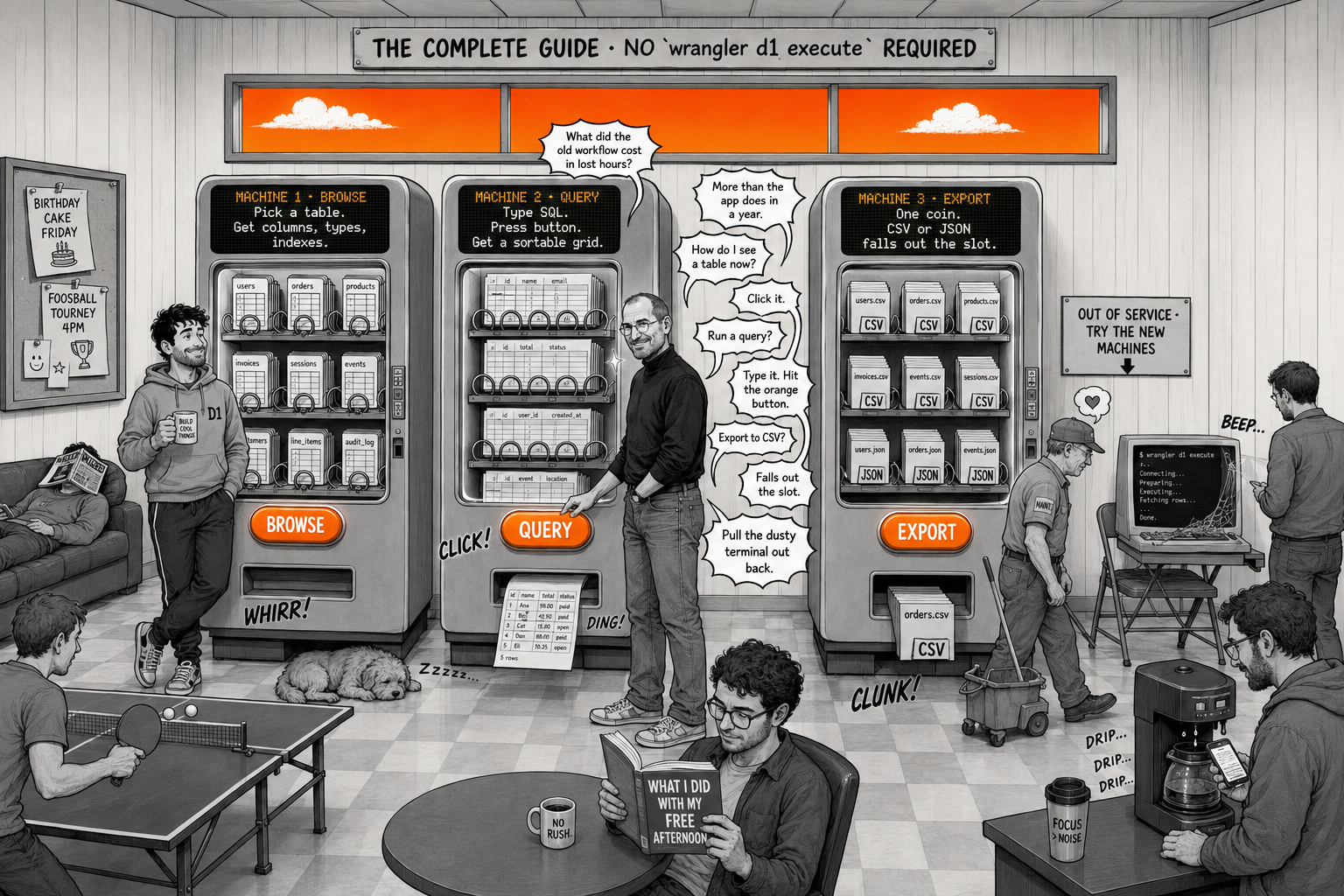
If you've been using Cloudflare D1, you know the drill: open a terminal, type wrangler d1 execute, wait for the response, squint at raw JSON output, repeat. For quick one-off queries it works. For everything else, it's painful.
You don't need a terminal to manage Cloudflare D1 — a native macOS client lets you browse, query, edit, and export your databases visually in seconds.
TL;DR — Manage Cloudflare D1 without the terminal
| Connect | Paste your Account ID + API Token, auto-discover every Cloudflare D1 database |
| Browse | Click any table to see columns, types, indexes, and foreign keys |
| Query | Syntax highlighting, auto-complete, and sortable result grids |
| AI Agent | Write queries in plain English, get optimization suggestions |
| Export | One-click CSV, JSON, or SQL dump — no piping required |
This guide walks through every major D1 management task and shows how to do it visually — no terminal required.
Connecting to your D1 databases
D1 databases live behind Cloudflare's REST API. To connect, you need two things:
- Your Cloudflare Account ID — found in the Workers & Pages section of the dashboard
- A Cloudflare API Token — with D1 read/write permissions
In MyD1, you paste these into the connection form and hit Connect. The app discovers all your D1 databases automatically and lists them in the sidebar. No wrangler.toml configuration, no binding setup.
Browsing tables and schema
With the CLI, inspecting schema means running .tables and .schema tablename commands one at a time. In a visual client, you click a database, see every table listed, click a table, and see its columns, types, indexes, and foreign keys laid out in a clean grid.
This matters when you're working with a database you didn't create — onboarding onto a project, debugging a production issue, or just refreshing your memory after a few weeks away.
Running queries
The query editor is where most of your time goes. A proper editor gives you:
- Syntax highlighting — SQL keywords, strings, numbers, all color-coded
- Auto-completion — table names and columns suggested as you type
- Multi-statement execution — run several queries in sequence
- Result grids — sortable, scrollable tables instead of JSON blobs
Compare that to the terminal where a SELECT * FROM users LIMIT 10 returns a wall of JSON that you then pipe to jq to make readable.
Editing data inline
Need to update a user's email? Fix a typo in a product name? In the terminal, you write an UPDATE statement, double-check the WHERE clause, and execute. In MyD1, you double-click the cell, type the new value, and press Enter. The app generates and runs the UPDATE for you.
This is especially useful for one-off fixes during development — the kind of micro-edits that don't justify writing and running SQL manually.
Exporting data
Exporting query results or entire tables to CSV, JSON, or SQL dumps is a common need — for backups, for sharing with non-technical teammates, or for migrating data between environments. MyD1 handles this with a right-click export menu. No piping to files, no format wrangling.
Using AI to write SQL
This is where a visual client really pulls ahead. MyD1's built-in AI assistant reads your database schema — every table, column, type, and constraint — and uses it as context for generating queries.
Ask: "Show me all users who signed up in the last 7 days and haven't made a purchase"
Get back a correct, runnable SQL query that references your actual table and column names. Not a generic example from Stack Overflow — a query that works on your database.
MyD1's AI Agent goes beyond query generation — it can suggest indexes for slow queries, spot performance bottlenecks, and help you discover patterns in your data, all through plain English conversation.
Managing multiple databases
Most real projects involve more than one database. A staging D1, a production D1, maybe a local SQLite for development. The sidebar in MyD1 lists all your connections — D1, MySQL, PostgreSQL — and lets you switch between them in one click.
In the terminal, switching between databases means updating environment variables, changing wrangler bindings, or opening new terminal tabs. It's manageable, but it's friction.
When the terminal is still the right call
Visual tools don't replace the CLI entirely. For scripted migrations, CI/CD pipelines, and automated tasks, the terminal is the right tool. But for day-to-day database work — browsing, querying, debugging, editing — a visual client saves real time.
Download MyD1 and try it with your D1 databases. Free version includes full query editing and table browsing.
Related: Browse and Query D1 Visually · Getting Started with D1 · Why D1 Needs a Desktop Client