Migrate from AWS EC2 to Cloudflare Workers in 2026
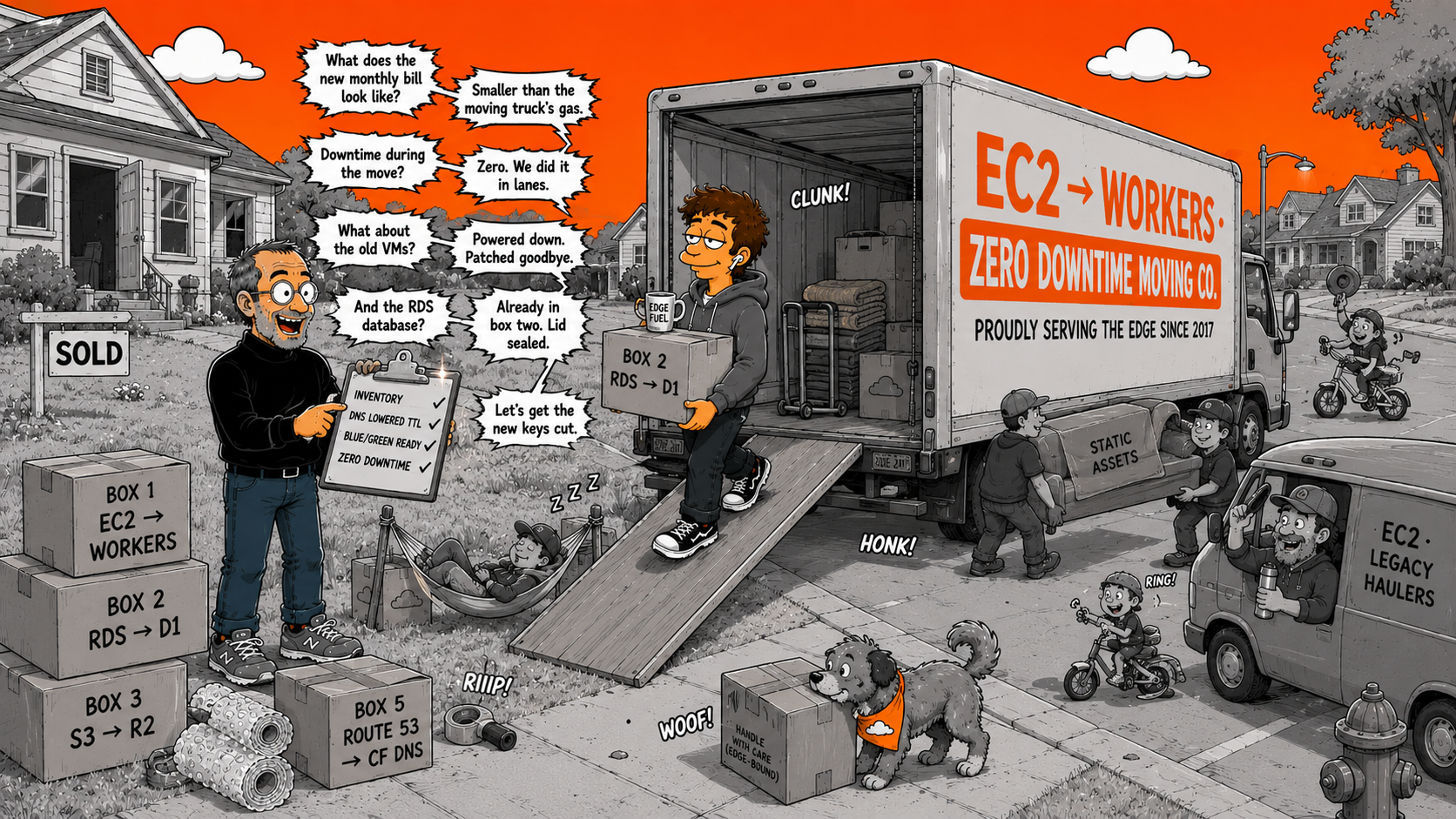
Migrate from AWS EC2 to Cloudflare Workers
Move your web app from EC2, RDS, and S3 to the Cloudflare Workers Stack. Less infrastructure, better performance, lower cost.
TL;DR — What this guide covers
| 6 steps | DNS → R2 (files) → D1 (database) → Workers (compute) → cutover → cleanup. Each step is independent. |
| Typical savings | From $60–110/mo on AWS to $0–5/mo on Cloudflare — with faster global performance. |
| After migrating | Use MyD1 to browse, query, and manage your D1 databases visually. |
Still running EC2 + RDS + S3? You're paying $50–200/month for a stack that's slower than a free alternative. The Cloudflare Workers Stack does the same job — globally, with less ops, for $0–5/month.
This guide walks you through leaving AWS, service by service. No rush — each step is independent. Start wherever you want.
CloudFront + ALB + ACM
Pages + automatic CDN/SSL
The Service Mapping
Here's what replaces what:
Before You Start
You'll need:
- A Cloudflare account (free)
- Wrangler CLI installed:
npm install -g wrangler - Your domain added to Cloudflare (free — just change nameservers)
- Access to your current AWS app's codebase
Incremental migration
You don't have to migrate everything at once. The steps below are ordered from easiest to hardest. You can migrate your files to R2 first while keeping your app on EC2, then move compute later. Each step is independent and can be done in its own time.
Step-by-Step Migration
This is the foundation for everything else — and it's free.
- Add your domain in the Cloudflare dashboard
- Cloudflare imports your existing DNS records automatically
- Update your nameservers at your registrar to point to Cloudflare
- Wait for propagation (usually minutes, sometimes up to 24 hours)
What you gain immediately: Cloudflare's CDN, free SSL, DDoS protection, and the fastest authoritative DNS — all without changing a single line of code. Your EC2 app still runs exactly as before, but now it's behind Cloudflare's network.
R2 uses the S3-compatible API, which means most S3 tools and libraries work with R2 out of the box. Migration is straightforward.
Create your R2 bucket:
wrangler r2 bucket create my-app-filesCopy your S3 data to R2. You can use rclone, the most popular tool for cloud-to-cloud file transfers:
# Install rclone
brew install rclone  # macOS

# Configure S3 source (follow prompts)
rclone config  # add your AWS S3 remote

# Configure R2 destination
# Use S3-compatible config with your R2 credentials
# (found in Cloudflare dashboard → R2 → Manage R2 API Tokens)

# Sync everything
rclone sync s3-remote:my-bucket r2-remote:my-app-files
Update your app code. Since R2 uses the S3 API, you usually just need to change the endpoint URL and credentials in your S3 client config:
// Before (AWS S3)
const s3 = new S3Client({ region: 'us-east-1' });

// After (Cloudflare R2)
const s3 = new S3Client({
  region: 'auto',
  endpoint: 'https://YOUR_ACCOUNT_ID.r2.cloudflarestorage.com',
  credentials: {
    accessKeyId: R2_ACCESS_KEY,
    secretAccessKey: R2_SECRET_KEY
  }
});
What you gain: Zero egress fees. If you were spending $50–500/month on S3 data transfer, that drops to $0 immediately.
This is the most involved step. You're moving from PostgreSQL or MySQL to SQLite on D1. The good news: for most web apps, the SQL differences are minimal.
Create your D1 database:
wrangler d1 create my-app-dbExport your existing schema and data. If you're on PostgreSQL:
# Export schema
pg_dump --schema-only my_database > schema.sql

# Export data
pg_dump --data-only --inserts my_database > data.sql
Adapt the schema for SQLite. Key differences to handle:
- Replace
SERIAL/AUTO_INCREMENTwithINTEGER PRIMARY KEY AUTOINCREMENT - Replace
TIMESTAMP/DATETIMEwithTEXT(SQLite stores dates as text) - Replace
BOOLEANwithINTEGER(0/1) - Remove PostgreSQL-specific types (
UUID,JSONB,ARRAY) — useTEXTwith JSON strings instead - Remove
CREATE EXTENSION,ALTER SEQUENCE, and other Postgres-specific statements
Apply to D1:
# Apply schema
wrangler d1 execute my-app-db --remote --file=schema.sql

# Import data
wrangler d1 execute my-app-db --remote --file=data.sql
Verify your data with MyD1: Open MyD1, connect to your D1 database, and visually browse your tables to confirm everything migrated correctly. It's much faster than running queries in the terminal. See how to browse D1 visually.
What if my database is too complex for SQLite?
If you have heavy use of stored procedures, complex joins across 20+ tables, or advanced PostgreSQL features (full-text search with custom dictionaries, PostGIS, etc.), D1 might not be the right fit. Consider Hyperdrive — Cloudflare's connection pooler that lets Workers connect to your existing PostgreSQL database with reduced latency. You keep RDS, but your compute moves to the edge. Read our D1 vs PostgreSQL comparison for guidance.
This step depends on what framework you're using. The easiest path is using a framework with a Cloudflare adapter:
- SvelteKit —
@sveltejs/adapter-cloudflare(full tutorial here) - Next.js —
@opennextjs/cloudflare - Nuxt — built-in Cloudflare preset
- Remix — Cloudflare Workers template
- Hono — native Workers support, great for APIs
- Plain Node.js / Express — rewrite to use the Workers API (the biggest lift)
Set up your wrangler.toml:
name = "my-app"
compatibility_date = "2026-01-01"

[[d1_databases]]
binding = "DB"
database_name = "my-app-db"
database_id = "your-d1-id"

[[r2_buckets]]
binding = "R2"
bucket_name = "my-app-files"
Update your database queries. Replace your PostgreSQL/MySQL client with D1's API:
// Before (PostgreSQL with pg)
const result = await pool.query(
  'SELECT * FROM users WHERE id = $1', [userId]
);
const user = result.rows[0];

// After (Cloudflare D1)
const user = await env.DB
  .prepare('SELECT * FROM users WHERE id = ?')
  .bind(userId)
  .first();
Test locally:
wrangler devThis runs your app locally with real D1 and R2 emulation. Test everything before deploying.
Deploy:
wrangler deployYour app is now live on 330+ locations worldwide.
Since your DNS is already on Cloudflare (Step 1), switching traffic is simple:
- Go to your Cloudflare dashboard → Workers & Pages → your project → Custom Domains
- Add your domain (e.g.,
myapp.com) - Cloudflare automatically updates DNS and provisions SSL
- Traffic now hits your Workers app instead of EC2
Zero downtime: DNS propagation is near-instant within Cloudflare's network. Your old EC2 instance still runs until you shut it down — keep it as a fallback for a few days, then terminate it when you're confident.
Once you've verified everything works on Cloudflare:
- Terminate your EC2 instance(s)
- Delete the RDS database (after a final backup)
- Empty and delete S3 buckets
- Remove CloudFront distributions
- Delete ALB, target groups, and security groups
- Clean up unused IAM roles and policies
- Delete the Route 53 hosted zone
- Review your next AWS bill — it should be $0
What You'll Save
Here's what a typical migration looks like in real numbers:
| Service | AWS monthly cost | Cloudflare monthly cost |
|---|---|---|
| Compute (EC2 t3.small) | $15–30 | $0 (free tier) or $5 |
| Database (RDS t3.micro) | $15–25 | $0 (D1 free tier) |
| File storage (S3, 50GB) | $1–5 | $0.75 |
| Data transfer (100GB egress) | $9 | $0 |
| CDN (CloudFront) | $5–20 | $0 (built-in) |
| SSL (ACM + ALB) | $16+ (ALB hourly) | $0 (automatic) |
| DNS (Route 53) | $0.50–2 | $0 |
| Total | $62–112/month | $0–5.75/month |
| Annual savings | $670–1,275/year | |
Common Migration Concerns
What about Node.js compatibility?
Workers run on V8, not Node.js. Most npm packages work fine, but anything that relies on fs, child_process, or native C++ addons won't work. Workers has built-in support for crypto, fetch, streams, and most Web APIs. Check the Workers Node.js compatibility docs for specifics.
What about WebSockets / real-time?
Workers support WebSockets natively, and Durable Objects give you stateful, real-time coordination (chat rooms, collaborative editing, game servers). For most real-time use cases, this replaces what you'd use EC2 + Redis for.
What about cron jobs / scheduled tasks?
Workers support Cron Triggers — define scheduled tasks in your wrangler.toml and they run on Cloudflare's infrastructure. No more EC2 crontabs or Lambda scheduled events with CloudWatch rules.
Can I migrate gradually?
Absolutely. The recommended order is: DNS first (immediate benefits, zero risk), then R2 (easy S3 migration), then D1 (schema adaptation), then Workers (the biggest change). Each step is independent. You can run your app on EC2 while already using R2 for storage.
After the Migration
Once you're on the Cloudflare Workers Stack, here's what changes:
- Deployments take seconds, not minutes.
wrangler deployand you're live globally. - No servers to patch or maintain. No OS updates, no security patches, no SSH.
- No capacity planning. Workers scale automatically to any traffic level.
- Your AWS bill goes to $0. Or close to it.
- Your app is faster for every user, everywhere in the world. Not because of optimization — because of architecture.
Use MyD1 to keep an eye on your D1 databases after migration. Browse tables, run queries, check data integrity — all from a native desktop app instead of the terminal.
Ready to Migrate?
The best time to move off EC2 was last year. The second best time is today. Start with Step 1 — move your DNS to Cloudflare. It's free, it's instant, and it gives you immediate performance and security benefits with zero risk.
Then work through the rest at your own pace. Every step saves you money and makes your app faster.
Once you're on D1, download MyD1 to manage your databases visually — browse tables, run queries, and verify your migration in seconds.
Related: Why AWS Is So Slow · AWS EC2 vs Cloudflare Workers Stack · Build a Full-Stack App for Free on Cloudflare · D1 vs MySQL vs PostgreSQL